Wi-Fi Scanner for Mac
pro Part of Netutilus Pro
Wi-Fi Networks, the Wi-Fi scanner in Netutilus for Mac, lists the networks around you on 2.4, 5 and 6 GHz, draws the part of the spectrum each one uses, and recommends the channel where your router would meet the least competition. On 2.4 GHz only channels 1, 6 and 11 don't overlap; it shows which of them your neighbours leave free. Part of Netutilus Pro.
Updated
Download on the Mac App Store ↗
free to download · this tool is part of Netutilus Pro, a one-time purchase · macOS 14.6 or later
Key facts
- Access
- Part of Netutilus Pro, a one-time in-app purchase
- Shows
- Nearby networks on 2.4, 5 and 6 GHz, a channel graph, a channel recommendation (after at least 3 scans)
- Permissions
- Location, only to read network names
- Talks to
- Nothing: it listens to the radio
- Exports
- CSV, text, channel graph image
- In Terminal
system_profiler SPAirPortDataType· details below
What it’s for
Your Wi-Fi shares the air with your neighbours’. Wi-Fi Networks scans the networks your Mac can hear, draws the part of the spectrum each one uses, and recommends the channel where yours would meet the least competition.
Use it when
- Wi-Fi gets slow in the evening, when everyone around is online.
- You’re setting up a router and choosing its channel.
- You want to know what’s around you: names, makers, Wi-Fi standards and security.
Reading the result
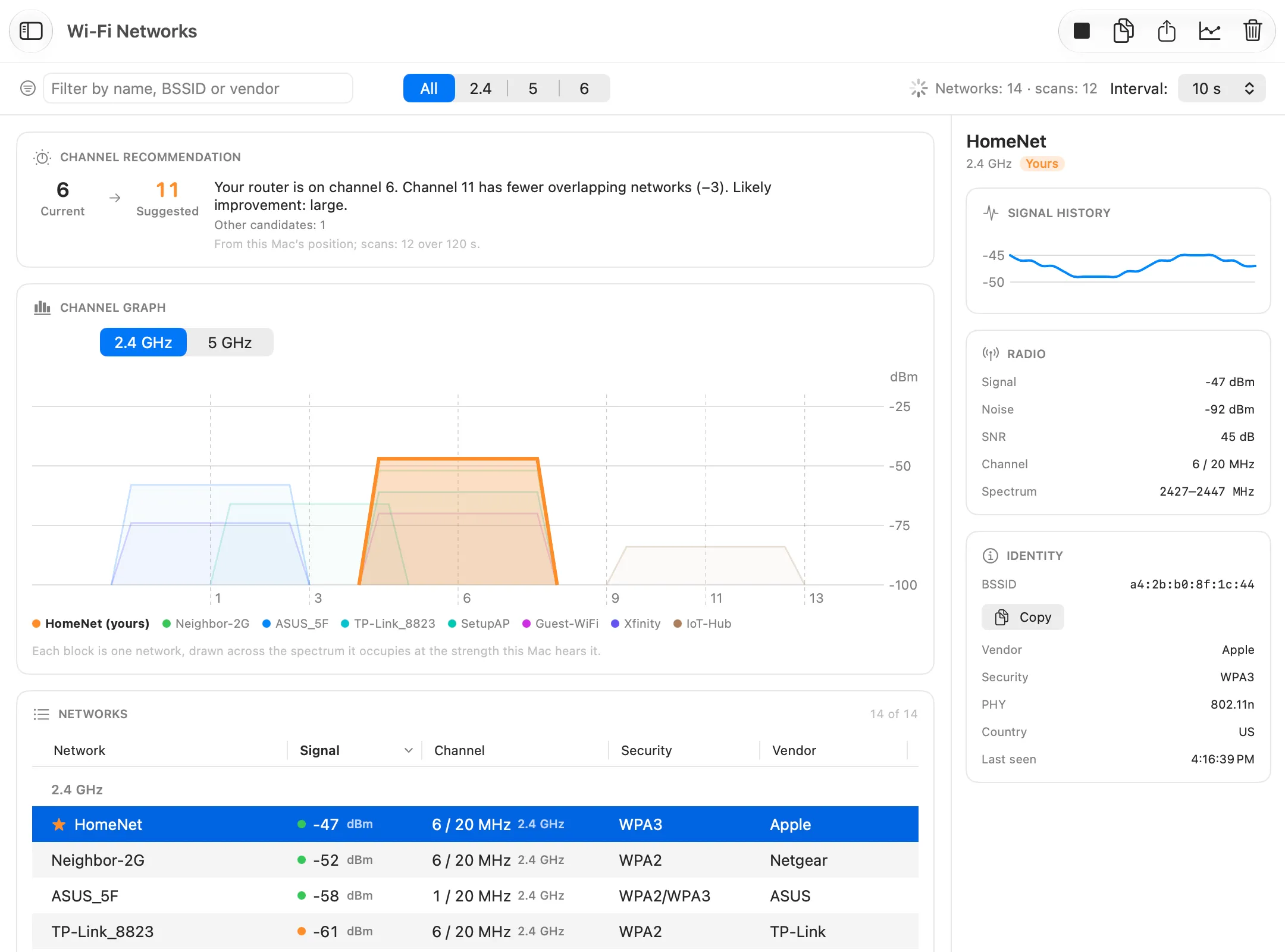
Example in the app: The 2.4 GHz band in a crowded building
- Your network is on channel 6, together with three neighbours. Networks on one channel take turns to send, so each gets less time.
- Channel 1 has two networks.
- A network on channel 3 overlaps both 1 and 6. Overlapping networks get in each other’s way without taking turns, which is worse than sharing a channel.
- Channel 11 has a single faint network. It is the quietest choice here.
Each shape is one network: as wide as the spectrum it uses, as tall as its signal at your Mac. On 2.4 GHz, only channels 1, 6 and 11 don’t overlap.
The Channel recommendation above the graph names the best channel, says how much it would help and what it is based on. Below the graph, the table lists every network. Select one for its details and signal history.
What you might see
- No network names. macOS shows them only to apps with Location access. Netutilus asks for it when you first scan, and never reads your location.
- Your router’s other networks, such as a guest network or a mesh node, don’t count against you. They move with your router.
- “Paused while another tool measures the connection”. A scan briefly takes the radio off your channel, so it waits until the measurement ends.
Options worth knowing
- It scans only while you let it. Interval sets how often, at most every 5 seconds.
- The recommendation needs at least three scans.
- Where your devices support it, use 5 GHz. It has more channels and fewer neighbours.
Related
- Wi-Fi bands and channels.
- Wi-Fi Analyzer, for the signal of your own connection.
- Wi-Fi is weak in some rooms.
Scan nearby Wi-Fi networks and channels in Terminal: system_profiler
# nearby networks with channel, band and security; every name reads <redacted>
$ system_profiler SPAirPortDataType

# how many networks sit on each channel, yours included
$ system_profiler SPAirPortDataType | grep "Channel:" | sort | uniq -c
$ system_profiler SPAirPortDataType | grep "Channel:" | sort | uniq -c
   3               Channel: 11 (2GHz, 20MHz)
   1               Channel: 149 (5GHz, 80MHz)
   1               Channel: 2 (2GHz, 40MHz)
   1               Channel: 56 (5GHz, 80MHz)
Terminal no longer shows the network names. Netutilus shows them once you allow Location, which it uses only to read Wi-Fi names.
Find the best channel without the app
The second command above counts the networks your Mac hears on each channel, yours included. On 2.4 GHz, choose 1, 6 or 11, whichever carries the fewest networks: those three don’t overlap, while a network on a channel in between, such as 3, gets in the way of two of them. On 5 GHz there are more channels and usually fewer neighbours, so use it where your devices can.
The count has a blind spot: Terminal shows no names and, for most networks around you, no signal strength, so a strong neighbour and a faint one weigh the same. Netutilus draws each network as tall as its signal at your Mac, and bases its channel recommendation on at least three scans. More in Wi-Fi bands and channels.
Try Wi-Fi Networks on your Mac
Netutilus puts every network tool in one app. Free to download; Pro is a one-time purchase, never a subscription.
See also
- Wi-Fi Bands and ChannelsWhy 2.4, 5 and 6 GHz behave differently, and how networks on the same channel share the air.
- Wi-Fi Is Weak in Some RoomsMeasure where the signal drops off, see how crowded your channel is, and pick a better one.
- Wi-Fi AnalyzerShows your Wi-Fi signal live, and tells whether a problem is the Wi-Fi or the internet behind it.