Checking open ports on a Mac is two questions: what is listening on this Mac and which app owns it, and which of those ports another device can actually reach. Terminal answers the first; a scan of the Mac’s network address answers the second.
Commands tested on macOS 27.0.1 (build 26A434) on 2026-10-20.
List listening ports and the app behind each
- Open Terminal (Applications › Utilities).
- Run:
lsof -nP -iTCP -sTCP:LISTEN
- Read the output. This is a shortened run from the test Mac:
COMMAND     PID USER   FD   TYPE             DEVICE SIZE/OFF NODE NAME
rapportd    639 user   10u  IPv4 0x4d1d43f9b70f3f2a      0t0  TCP *:57810 (LISTEN)
rapportd    639 user   12u  IPv6 0x765bd96f45816919      0t0  TCP *:57810 (LISTEN)
ControlCe   661 user    9u  IPv4 0x5e9d6455d8b4ef35      0t0  TCP *:7000 (LISTEN)
ControlCe   661 user   10u  IPv6 0x479f1e6477b3e49e      0t0  TCP *:7000 (LISTEN)
ControlCe   661 user   11u  IPv4 0xf995c465003c0f25      0t0  TCP *:5000 (LISTEN)
ControlCe   661 user   12u  IPv6 0x508bce2741500fd1      0t0  TCP *:5000 (LISTEN)
hugo      67950 user    4u  IPv4 0xd971883d9917d54e      0t0  TCP 127.0.0.1:1313 (LISTEN)
ollama    94619 user    4u  IPv4 0x7422274914350826      0t0  TCP 127.0.0.1:11434 (LISTEN)
node      51112 user   26u  IPv4 0x5fe45700be8e0e85      0t0  TCP 127.0.0.1:4747 (LISTEN)
COMMAND is the app, PID its process ID, and NAME the address and port it listens on. *:5000 means every network interface; 127.0.0.1:4747 means this Mac only (more on that below).
What each flag does:
| Flag | Effect |
|---|---|
-n |
Shows IP addresses, without looking up host names (faster) |
-P |
Shows port numbers, not service names such as commplex-main |
-iTCP |
Only TCP network sockets |
-sTCP:LISTEN |
Only sockets in the LISTEN state, the ones waiting for connections |
+c 0 |
Prints the full app name; by default COMMAND is cut to nine characters, which is why ControlCenter shows as ControlCe |
Note: Without
sudo, lsof lists only processes that run as your user. On the test Mac it missed system processes thatnetstat(below) did show. To include them, runsudo lsof -nP -iTCP -sTCP:LISTENand enter your password. The command only reads; it changes nothing.
What is using one port
Add the port number after -iTCP::
lsof -nP -iTCP:5000 -sTCP:LISTEN
COMMAND   PID USER   FD   TYPE             DEVICE SIZE/OFF NODE NAME
ControlCe 661 user   11u  IPv4 0xf995c465003c0f25      0t0  TCP *:5000 (LISTEN)
ControlCe 661 user   12u  IPv6 0x508bce2741500fd1      0t0  TCP *:5000 (LISTEN)
On a Mac, port 5000 is usually AirPlay Receiver: see port 5000 in use on a Mac.
No output means nothing that your user can see is listening on that port.
UDP ports
UDP has no listening state. lsof -nP -iUDP lists every UDP socket, including active conversations (NAME contains ->). To keep only the ones waiting for traffic:
lsof +c 0 -nP -iUDP | grep -v -- '->'
On the test Mac nearly every line was UDP *:5353, multicast DNS, which Apple lists for Bonjour, AirPlay, Home Sharing and printer discovery.
netstat on a Mac: no -p, but -v shows the process
On Linux, netstat -p shows the program behind each socket. On a Mac, -p means “protocol”, so the Linux habit netstat -tulpn prints netstat: n: unknown or uninstrumented protocol and then lists local UNIX sockets instead. The plain listing shows addresses only:
netstat -an -p tcp | grep LISTEN
Shortened:
tcp6       0      0  *.5000                 *.*                    LISTEN
tcp4       0      0  *.5000                 *.*                    LISTEN
tcp4       0      0  127.0.0.1.4747         *.*                    LISTEN
tcp4       0      0  127.0.0.1.8021         *.*                    LISTEN
netstat puts a dot before the port (127.0.0.1.4747) where lsof writes a colon.
On macOS 27.0.1, -v adds a process:pid column, and it works without sudo. The full line is very wide, so this keeps three columns (shortened output):
netstat -anv -p tcp | awk '/LISTEN/ {print $1, $4, $11}'
tcp6 *.57810 rapportd:639
tcp4 *.57810 rapportd:639
tcp4 127.0.0.1.4747 node:51112
tcp6 *.5000 ControlCenter:661
tcp4 *.5000 ControlCenter:661
tcp6 *.7000 ControlCenter:661
tcp4 *.7000 ControlCenter:661
tcp4 127.0.0.1.8021 launchd:1
tcp6 ::1.8021 launchd:1
The launchd:1 lines are a system process that plain lsof did not show. The manual describes -v only as “Increase verbosity level”, so this column is undocumented and may change in a later macOS. netstat cuts the name to 16 characters, and a name with a space shifts the awk columns; drop the awk part to see the raw line.
What a Mac listens on out of the box
These showed up on the test Mac, where nothing listened on the sharing ports (22, 445, 5900). Your list will differ with the apps you run.
| Port | Owner | What it is |
|---|---|---|
| TCP 5000 and 7000, all interfaces | ControlCenter | AirPlay Receiver. Apple lists both ports for AirPlay |
| TCP high port (57810 here) | rapportd | A system process. Its port was 57005 in an earlier run the same day. Apple lists 49152–65535 for AirPlay, device pairing, network diagnostics and Xsan |
| UDP 5353 | mDNSResponder | Multicast DNS (Bonjour) |
| UDP 137, 138 | netbiosd | NetBIOS name and datagram services (Windows networking) |
Each sharing service you turn on adds its own port. Remote Login is SSH, which Apple’s port list puts on TCP 22. The same list puts Screen Sharing on TCP 5900 and SMB, the protocol File Sharing uses, on TCP 445.
Check what the network can reach
lsof and netstat list what is listening, not whether another device can connect. To find out, connect to the Mac’s own network address the way another device would.
- Find the Mac’s address on the local network:
ipconfig getifaddr en0
192.168.1.23
If it prints nothing, your Mac reaches the network through another interface. route -n get default names it on its interface: line (en0 here); put that name in place of en0.
- Test one port with
nc, which is built in.-zonly connects and closes,-vreports the result,-G 2gives up after 2 seconds:
nc -zv -G 2 192.168.1.23 5000
nc -zv -G 2 192.168.1.23 4747
nc -zv -G 2 127.0.0.1 4747
Connection to 192.168.1.23 port 5000 [tcp/commplex-main] succeeded!
nc: connectx to 192.168.1.23 port 4747 (tcp) failed: Connection refused
Connection to 127.0.0.1 port 4747 [tcp/*] succeeded!
Port 5000 (bound to every interface) answers on the network address. Port 4747 (bound to 127.0.0.1) answers only on the loopback address, so other devices cannot reach it.
Scan the whole range with Netutilus
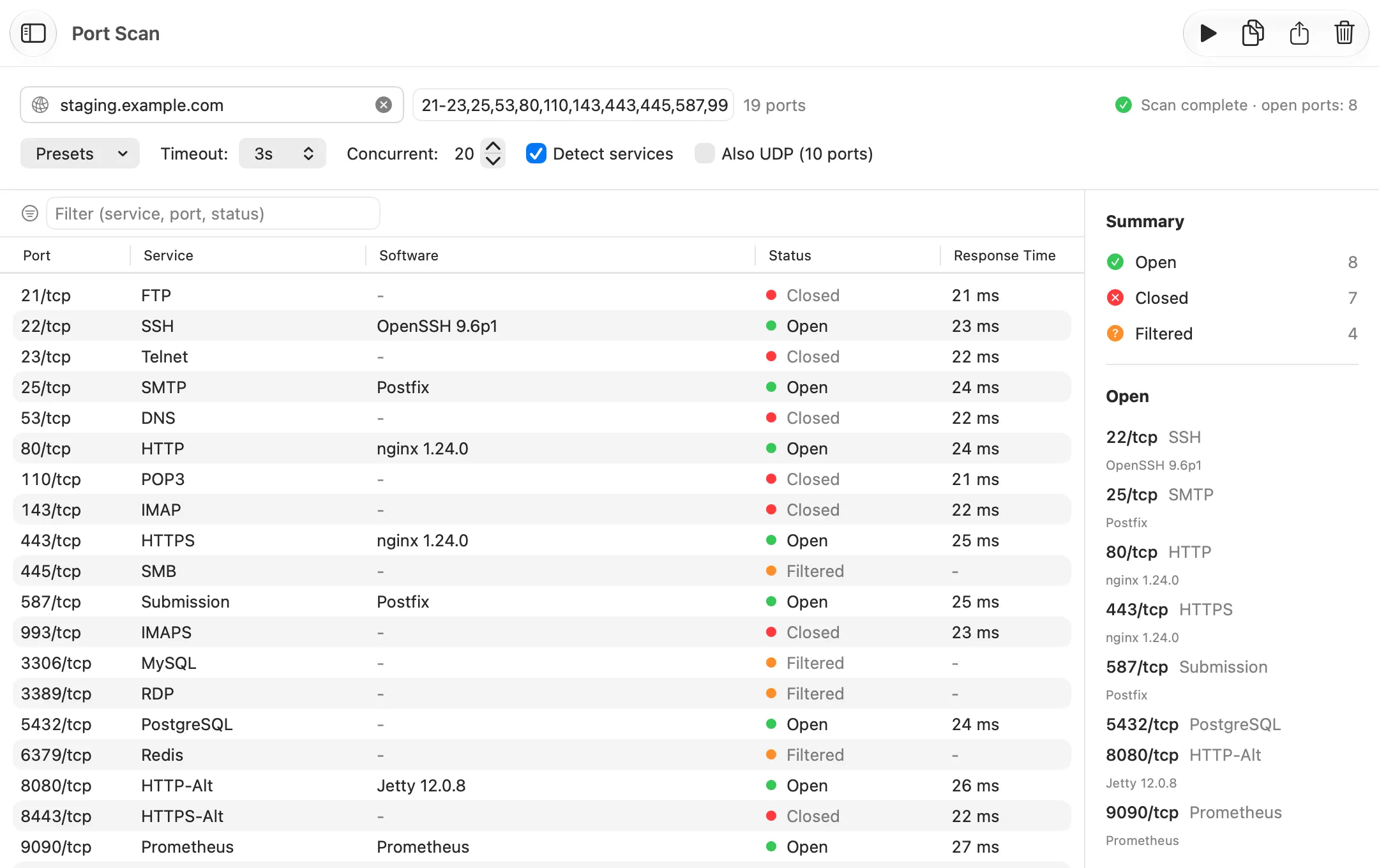
nc also takes a range, such as nc -z -G 1 192.168.1.23 1-1024, but it tries one port after another and prints only the ports that answer. Port Scan in Netutilus checks many ports at once, marks each one open, closed or filtered, and can name the software that answers. Port Scan is free.
- Open Netutilus and choose Port Scan under Network Tools in the sidebar.
- Type the Mac’s address (for example
192.168.1.23) in the host field. - In the ports field, type a range or list, such as
1-65535, or only the ports lsof showed you:5000,7000,4747. - Turn on Detect services to read what each open port says about itself.
- Click Start Scan.
Each port comes back Open (something accepted the connection), Closed (the Mac answered that nothing listens there) or Filtered (no answer). If everything on a local address comes back filtered, macOS may be blocking the scan: Netutilus needs Local Network access, in System Settings › Privacy & Security › Local Network. The ports explainer covers the three states in more detail.
The most honest test runs from a second Mac on the same network, with Netutilus or the same nc commands, because its connection arrives over the network like any other device’s.
127.0.0.1 versus all interfaces
The address in front of the port decides who can connect:
| lsof shows | netstat shows | Who can connect |
|---|---|---|
127.0.0.1:4747 |
127.0.0.1.4747, ::1.8021 |
Only apps on this Mac (loopback) |
*:5000 |
*.5000 |
Any device that can reach the Mac, on every interface |
192.168.1.23:<port> |
192.168.1.23.<port> |
Devices that reach the Mac on that one address |
A local development server bound to 127.0.0.1 is invisible to the network. The same server bound to * is open to everyone on your Wi-Fi. Whether the internet can reach it as well depends on your router, which is a separate test.
How to close ports on a Mac
A port closes when the program listening on it stops listening. There is no switch for the port itself, so close the service behind it:
- Sharing services. Choose Apple menu › System Settings, click General, then Sharing. Turn off what you do not use, such as File Sharing, Screen Sharing and Remote Login.
- AirPlay Receiver (ports 5000 and 7000). In System Settings › General › AirDrop & Continuity, turn off AirPlay Receiver. If you keep it, setting “Allow AirPlay for” to Current User limits streaming to devices signed in to your Apple Account. That limits who may use AirPlay; it does not close the ports.
- Apps. Quit the app that owns the port. A server you started in Terminal stops when you stop it in that Terminal window.
- The firewall. System Settings › Network › Firewall. Its settings list apps and services, not port numbers. Apple notes that when you turn on a sharing service, “macOS opens a specific port for the service to communicate through.” Click Options to allow or block incoming connections for each app.
Then run lsof -nP -iTCP -sTCP:LISTEN again to confirm the port is gone.
Is it bad to have open ports?
Not by itself. The test Mac had ports 5000 and 7000 open for AirPlay Receiver, a default it never chose. A port is only as risky as the software answering on it and the people who can reach it. Ask three questions about each one:
- Do you know the owner? If lsof or
netstat -anvnames an app you do not recognise, look into it. - Who can reach it? A
127.0.0.1port only from this Mac, a*port from your network. - Is it remote access? SSH (22), Screen Sharing (5900) and Apple Remote Desktop (3283) let someone control the Mac. Apple warns that “allowing remote login to your Mac can make it less secure.”
The rule of thumb from the Netutilus guide: keep the ports you do not use closed, and never expose remote-access ports to the internet without a VPN or a strong login.
Network Utility’s Port Scan is gone: what replaces it
Apple’s support page for macOS Mojave (10.14) still says to open Network Utility, click Port Scan and enter your IP address. That app no longer exists. Apple deprecated Network Utility in macOS Big Sur (2020); Eclectic Light dates its full removal to macOS Ventura. On the macOS 27.0.1 test Mac, /System/Library/CoreServices/Applications/ has no Network Utility.
What does the same job now:
| Task | Built in | App |
|---|---|---|
| Which app listens on which port | lsof, netstat -anv |
Netutilus does not show this; use Terminal |
| Is one port reachable | nc -zv |
Netutilus Port Scan or Path Check |
| Scan a range of ports | nc -z with a range, one port after another |
Netutilus Port Scan (free), or nmap |
nmap is not built into macOS; you can install it with Homebrew (brew install nmap). It is the better choice when you need operating system detection or scans you script. For a quick look at your own Mac, lsof plus a Port Scan of the Mac’s address answers both questions.