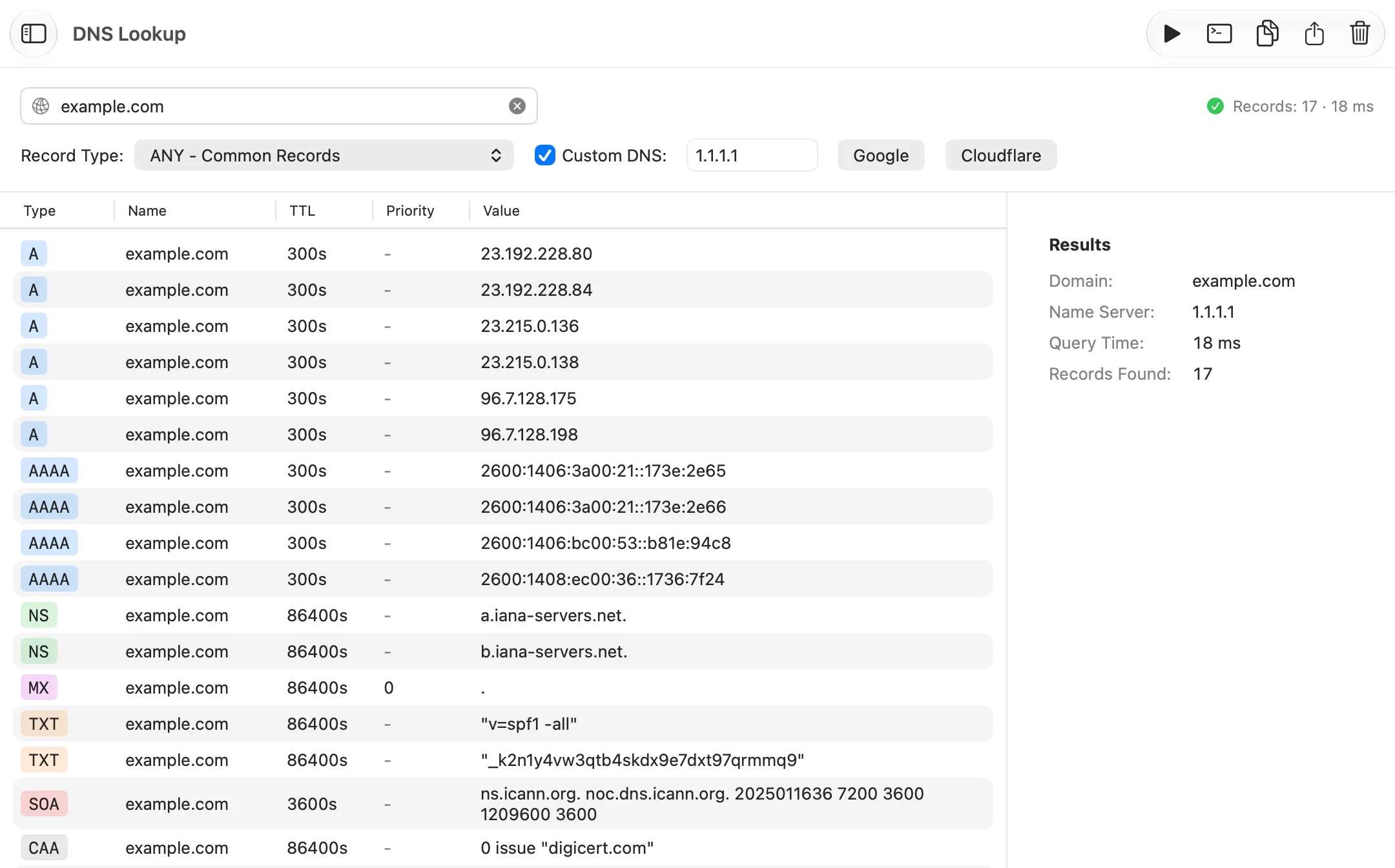
A DNS error means the browser never got an address for the site. The fault is the domain itself, the resolver your Mac asks, or something on the Mac that changed which resolver that is. The steps below tell them apart. For a site that resolves but still won’t load, see a website won’t open.
Commands tested on macOS 27.0.1 on 2026-10-20. Addresses and names in the output are replaced.
What each error means
Chrome names the result of its own DNS check in the error code. The quoted meanings are comments in Chromium’s source, and the page wording is Chrome’s own.
| Message | Where | What it means |
|---|---|---|
DNS_PROBE_FINISHED_NXDOMAIN |
Chrome | “The DNS servers are working fine, so the domain must not exist.” |
ERR_NAME_NOT_RESOLVED |
Chrome | “The host name could not be resolved”: any lookup failure |
DNS_PROBE_FINISHED_BAD_CONFIG |
Chrome | “The DNS configuration is wrong, or the servers are down or broken.” |
DNS_PROBE_FINISHED_NO_INTERNET |
Chrome | “There’s no internet connection.” |
DNS_PROBE_FINISHED_BAD_SECURE_CONFIG |
Chrome | The same as bad config, for Chrome’s secure DNS setting |
| “This site can’t be reached” | Chrome page heading | Shown over every code above except DNS_PROBE_FINISHED_NO_INTERNET, whose heading is “No internet” |
| “…’s server IP address could not be found.” | Chrome page text | Shown with ERR_NAME_NOT_RESOLVED and both bad-config codes. With NXDOMAIN, Chrome says “Check if there is a typo in …” instead |
| “DNS server not responding” | the usual wording in searches | The resolver did not answer at all. In Terminal, dig prints connection timed out; no servers could be reached |
In DNS terms there are four outcomes you will meet most, and both dig and Netutilus show which one you got:
| DNS answer | What dig shows |
What Netutilus DNS Lookup says | Meaning |
|---|---|---|---|
| NXDOMAIN | status: NXDOMAIN |
Domain does not exist (NXDOMAIN) | The name is not in DNS: a typo, a lapsed domain, or a resolver that blocks it |
| No data | status: NOERROR, ANSWER: 0 |
The domain exists but has no A records | The name exists, the record type doesn’t |
| SERVFAIL | status: SERVFAIL |
The DNS server failed to answer (SERVFAIL) | The resolver tried and failed: the domain’s own DNS may be broken, or the resolver itself is |
| No answer | connection timed out |
The query timed out | The resolver is unreachable: the “not responding” case |
Step 1: is it one site or every site?
Look up a name that certainly exists:
dig apple.com | grep -E 'status|Query time|SERVER'
;; ->>HEADER<<- opcode: QUERY, status: NOERROR, id: 24992
;; Query time: 12 msec
;; SERVER: 192.168.1.1#53(192.168.1.1)
NOERROR with an answer means your resolver works: go to step 2. If this fails too, every site is affected: go to step 3, after the check below.
In Netutilus, Internet Check is free. Click Check My Connection: it tests the router, the internet, DNS through the Mac’s system resolver and the web in turn. If only lookups are slow or failing, the verdict is DNS is slow, with the advice to try another DNS server such as 1.1.1.1 or 8.8.8.8. If the router or internet stop fails, DNS is only a symptom: see the internet is slow or keeps dropping. With a VPN on, the check says it can’t tell rather than guess: use the Terminal steps instead.
Step 2: ask your resolver, then a public one
Ask the Mac’s own resolver and Cloudflare’s 1.1.1.1 the same name. Here the name does not exist, and both agree:
dig no-such-name-netutilus-20261020.com | grep -E 'status|SERVER'
dig @1.1.1.1 no-such-name-netutilus-20261020.com | grep -E 'status|SERVER'
;; ->>HEADER<<- opcode: QUERY, status: NXDOMAIN, id: 43033
;; SERVER: 192.168.1.1#53(192.168.1.1)
;; ->>HEADER<<- opcode: QUERY, status: NXDOMAIN, id: 4512
;; SERVER: 1.1.1.1#53(1.1.1.1)
Read the pair with this table:
| Your resolver | 1.1.1.1 | Verdict |
|---|---|---|
| Answer | Answer | DNS works. The problem is past DNS: see a website won’t open |
| NXDOMAIN | NXDOMAIN | The name does not exist. Check the spelling, then step 4 |
| Times out, SERVFAIL or REFUSED | Answer | Your resolver is the problem: the router, the provider, or a VPN or filter that replaced it. Step 3, then change DNS servers |
| NXDOMAIN | Answer | Your resolver hides a name that exists: a filter, a parental-control or ad-blocking DNS, or a company resolver |
| Answer | NXDOMAIN | A private name that only your network or VPN knows. Normal for company names reached over a VPN |
| SERVFAIL | SERVFAIL | The domain’s own DNS is broken. Nothing on your Mac will fix it |
The last row happens. dnssec-failed.org has a broken DNSSEC chain of trust, so a resolver that checks signatures refuses to answer. With checking turned off (+cd), the same resolver returns an address:
dig @1.1.1.1 dnssec-failed.org | grep status
dig +cd @1.1.1.1 dnssec-failed.org | grep status
;; ->>HEADER<<- opcode: QUERY, status: SERVFAIL, id: 46736
;; ->>HEADER<<- opcode: QUERY, status: NOERROR, id: 49418
Note:
digreads/etc/resolv.conf, and on a Mac that file says: “This file is not consulted for DNS hostname resolution, address resolution, or the DNS query routing mechanism used by most processes on this system.” With a VPN that sends some names to its own resolver,digcan disagree with Safari and Chrome. To ask the way apps do, usedscacheutil -q host -a name apple.com. It prints the addresses, or nothing at all when the name does not resolve.
In Netutilus
DNS Lookup is free.
- Type the domain, keep Record Type on A - IPv4 Address, and click Lookup. The Name Server line reads System DNS: the Mac’s own resolver, the one apps use.
- Turn on Custom DNS and click Cloudflare. It fills in 1.1.1.1.
- Click Lookup again. Netutilus now asks Cloudflare over DNS over HTTPS, so the answer comes from Cloudflare, not from your router’s DNS.
To reach Cloudflare, the app still has to look up cloudflare-dns.com through your Mac’s resolver. If every lookup on the Mac fails, use dig @1.1.1.1 in Terminal, which needs no lookup first.
Compare the two with the table above. Through System DNS, a missing name reads “No A records — the domain may not exist”, because macOS reports a missing name and a missing record the same way. Through Custom DNS you get the exact answer, such as “Domain does not exist (NXDOMAIN)”. Query Time shows how long each resolver took.
Step 3: VPN, Tailscale, iCloud Private Relay and DNS profiles
If your own resolver is the one failing, find out which resolver that is. scutil --dns lists what macOS really uses:
scutil --dns | head -8
networksetup -getdnsservers Wi-Fi
DNS configuration

resolver #1
  search domain[0] : lan
  nameserver[0] : 192.168.1.1
  if_index : 14 (en0)
  flags    : Request A records
  reach    : 0x00020002 (Reachable,Directly Reachable Address)
There aren't any DNS Servers set on Wi-Fi.
Here the Mac uses the router, 192.168.1.1, and no server is typed in by hand. Resolver #1 is the default; resolvers further down with a domain line are used only for names in that domain, which is how a VPN sends company names to its own server. What to look for:
nameserver you see |
What set it |
|---|---|
| Your router’s address | The router, or your provider through it. The normal case |
127.0.0.1 |
A DNS proxy running on the Mac. The dnscrypt-proxy guide, for one, has you put 127.0.0.1 first in the DNS list |
127.0.2.2 and 127.0.2.3 |
The Cloudflare One Client (formerly WARP), which runs a local DNS proxy on those addresses while connected |
| An address you don’t recognise | A VPN app, a security or filter app, or a profile |
If DNS “keeps changing to 127.0.0.1”, something on the Mac puts it there: a DNS proxy, filter or VPN app, or a profile. If that proxy is stopped or broken, lookups sent to it get no answer, which is why the dnscrypt-proxy guide suggests keeping a public server such as 1.1.1.1 after 127.0.0.1. Quit the app, or uninstall it as its own documentation says. The same guide tells you to restore your DNS servers after you stop or uninstall it.
List the VPN services too, then turn each one off and test again:
scutil --nc list
Available network connection services in the current set (*=enabled):
* (Disconnected)   0A1B2C3D-0000-4000-8000-000000000001 VPN (com.example.vpn) "ExampleVPN"   [VPN:com.example.vpn]
- Tailscale. Its docs warn that “some CLI tools on macOS such as
hostornslookupcircumvent system DNS resolution, and will not work with MagicDNS”, and suggestdscacheutil -q host -a name <name>to test instead. To stop Tailscale handling DNS on a Mac, the docs say to open its menu bar icon, then Preferences, and uncheck Use Tailscale DNS settings. - iCloud Private Relay. Apple says that when you browse in Safari with it on, “your DNS records are encrypted”. If only Safari fails, it is a suspect. To rule it out, turn it off in System Settings › your name › iCloud › Private Relay, or for one network: System Settings › Network › Wi-Fi › Details next to the network, then turn off Limit IP address tracking.
- Profiles. An installed configuration profile can carry encrypted DNS settings (Apple’s DNSSettings payload). Look in System Settings › General › Device Management. If you can’t remove a profile, Apple says to ask whoever provided it.
Network Monitor in Netutilus (free) shows which interface is In use, labels a VPN tunnel VPN tunnel, and its Capabilities row says whether DNS works on the current connection. To check a VPN that should stay on, see is my VPN working.
Step 4: a lapsed or misconfigured domain
When every resolver says NXDOMAIN and the spelling is right, ask the registry whether the domain is still registered:
whois no-such-name-netutilus-20261020.com | grep 'No match'
whois apple.com | grep -E -m3 'Registry Expiry|Registrar:|Domain Status'
No match for domain "NO-SUCH-NAME-NETUTILUS-20261020.COM".
   Registry Expiry Date: 2027-02-20T05:00:00Z
   Registrar: Nom-iq Ltd. dba COM LAUDE
   Domain Status: clientDeleteProhibited https://icann.org/epp#clientDeleteProhibited
| What whois shows | What it means for DNS |
|---|---|
No match for domain |
Not registered, so nothing to resolve |
| An expiry date in the past | The registration may have lapsed: only the owner can renew it |
clientHold or serverHold in Domain Status |
ICANN: the registry does not activate the domain in the DNS, so it “will not resolve” even though it is registered |
| A future date and no hold | Registered: look at the domain’s DNS records and name servers instead |
In Netutilus, Whois (free) shows the same as Expires and Status, and Name Servers lists the servers that answer DNS for the domain. If every resolver returns SERVFAIL for it, only the site’s owner can fix it.
Fixes
Fix the cause the steps found:
- Your resolver fails, a public one works: change DNS servers. Apple’s steps: System Settings › Network, click the network service, click Details, then DNS, click the add button and type the server’s address, such as 1.1.1.1 or 8.8.8.8. Or change it once in the router for every device.
- A VPN, proxy or filter app set the DNS: turn it off and test again, then update or reinstall it, or remove it as its documentation says, and put your DNS servers back.
- A profile set the DNS: remove it in System Settings › General › Device Management, or ask whoever installed it.
- Chrome shows
DNS_PROBE_FINISHED_BAD_SECURE_CONFIG: the error page for that code says to check your secure DNS settings: “You may have configured a secure DNS server to which connections are failing.” - The Mac kept an old answer after a site moved: flush the DNS cache. The command Apple gave for OS X 10.10.4 and later, in an article it has since archived, is
sudo killall -HUP mDNSResponder. It asks for your administrator password. Flushing does not help when the resolver itself fails or the domain is gone.
Terminal equivalents
Everything above, in one place:
dig example.com                     # your Mac's default resolver
dig @1.1.1.1 example.com            # Cloudflare, bypassing it
dscacheutil -q host -a name example.com   # the way apps resolve
scutil --dns                        # which resolvers macOS uses
networksetup -getdnsservers Wi-Fi   # servers typed in by hand
scutil --nc list                    # VPN services
whois example.com                   # registration and expiry
None of these change a setting or need sudo. Only the cache flush in the fixes does.