Angry IP Scanner runs on a Mac. Download the zip for your processor from angryip.org, double-click it to unzip, and open the app. The app is not signed, so macOS blocks the first launch: allow it once in System Settings › Privacy & Security › Open Anyway. Below: the steps, what it shows, and when a native Mac scanner fits better.
Commands tested on macOS 27.0.1 on 2026-10-20. Addresses and names in the output are replaced.
Install and open it on a Mac
Angry IP Scanner has no installer. Its Mac download is a zip with the app bundle inside, and it includes its own Java runtime, so you do not install Java separately.
- Find out which Mac you have. Choose Apple menu › About This Mac: a Chip line means Apple silicon (M1 and later), a Processor line means Intel. In Terminal,
uname -mprintsarm64on Apple silicon. - On the download page, under Mac OS, pick Bundle for Mac ARM (M-CPUs) for Apple silicon or Bundle for Mac Intel.
- Double-click the zip in Downloads to extract Angry IP Scanner.app. Drag it to Applications if you want to keep it.
- Double-click the app. macOS refuses to open it and shows a warning. Close the warning.
- Open System Settings › Privacy & Security, scroll down, and click Open Anyway. When the warning comes back, click Open.
Apple says the app is then saved as an exception, and from then on it opens with a double-click like any other app. Angry IP’s FAQ adds that a user with admin rights can bypass the restriction.
Why macOS blocks it
The 3.10.0 bundle carries no code signature. Checked here on the Apple silicon download:
$ codesign -dv "Angry IP Scanner.app"
Angry IP Scanner.app: code object is not signed at all
$ spctl --assess --type execute -v "Angry IP Scanner.app"
Angry IP Scanner.app: rejected
source=no usable signature
spctl asks Gatekeeper for its verdict without opening the app. “Rejected” is why the double-click fails, and Open Anyway is the supported way past it. Angry IP’s FAQ says Apple requires signing and notarization, and that its workaround applies “until this is done”.
Right-click › Open no longer works
The download page still suggests right-clicking the app and choosing Open, and the FAQ describes the same Control-click trick for Catalina and earlier. That shortcut is gone: Apple says that from macOS Sequoia, “users will no longer be able to Control-click to override Gatekeeper”. On macOS 15 and later, including macOS 27, use Open Anyway in Privacy & Security instead.
Does it run natively on Apple silicon?
Yes, in version 3.10.0 (2026-08-31). Its release notes say the “MacOS build should not require Rosetta anymore” and that the Mac builds bundle Java 25. Separate ARM downloads existed before (3.8.2 to 3.9.3 have them on GitHub), but 3.10.0 is the release whose notes say Rosetta is no longer needed.
The Apple silicon bundle checks out. Its Java runtime is an arm64 binary, version 25.0.4, and so are the two SWT interface libraries packed in its jar:
$ file "Angry IP Scanner.app/Contents/MacOS/jre/bin/java"
Angry IP Scanner.app/Contents/MacOS/jre/bin/java: Mach-O 64-bit executable arm64
$ unzip -q "Angry IP Scanner.app/Contents/MacOS/ipscan-3.10.0-macArm64.jar" 'libswt-*.jnilib'
$ file libswt-*.jnilib
libswt-cocoa-4973r12.jnilib:    Mach-O 64-bit bundle arm64
libswt-pi-cocoa-4973r12.jnilib: Mach-O 64-bit bundle arm64
The app itself is a Java program, started by a small shell script inside the bundle.
If it opens but finds nothing
Since macOS 15, apps need Local Network permission to reach devices on your network. Apple’s technote says the system asks the first time a program accesses the local network, and “it may deny the operation immediately, before the user has responded to the alert”.
- If macOS asks for local network access when you start a scan, allow it.
- If you denied it, open System Settings › Privacy & Security › Local Network and turn it on there.
- Scan again. The first scan after the prompt can come back empty.
Command-line tools run from Terminal are exempt, which is why nmap in Terminal can reach devices that an app without the permission cannot. We did not run Angry IP Scanner itself on this Mac, so this section rests on Apple’s rules, not on a test of this app.
What it shows on current macOS
A fresh install shows four columns: IP, Ping, Hostname and Ports. From 3.10.0 the list shows only hosts that answered by default; the release notes call this mode “Alive Only”.
- Ping shows whether the host replied and the average round-trip time.
- Hostname comes from a reverse DNS lookup. The app’s own help warns that it “may be different from the host name configured on the machine itself”.
- Ports lists the open ports among the ones selected in Preferences.
More columns are under Tools › Fetchers: MAC Address, MAC Vendor, NetBIOS Info, TTL, Packet Loss, Web detect and others.
MAC addresses
The MAC Address column is off until you add it in Tools › Fetchers. On a Mac it runs arp -n with each host’s IP and reads the answer, and for the Mac’s own row it reads the network interface. It works only on the local network. The app’s help says: “Will not work for non-local network hosts.”
The same command in Terminal, for the router, on macOS 27.0.1:
$ arp -n 192.168.1.1
? (192.168.1.1) at aa:bb:cc:11:22:01 on en0 ifscope [ethernet]
arp reads the Mac’s ARP cache. An entry marked (incomplete) has no MAC address, and arp -a on this Mac listed a few of those. We did not see Angry IP Scanner’s own MAC column on macOS 27, because the app itself was not run for this page.
For the Terminal-only route (arp -a and nmap -sn, with real output), see how to see all devices on your network from a Mac.
Angry IP Scanner and Netutilus compared
Facts checked on 2026-10-20, on angryip.org, the Angry IP Scanner GitHub release and source, the downloaded 3.10.0 bundle, and the Netutilus app. Prices are left out on purpose.
| Angry IP Scanner | Netutilus LAN Scanner | |
|---|---|---|
| Maker | Open-source project, maintained by angryziber | Poteam |
| Platforms | Windows, Mac, Linux | Mac |
| Mac requirement | Separate builds for Apple silicon and for Intel; no minimum macOS stated | macOS 14.6 or later |
| Latest version checked | 3.10.0 (2026-08-31) | 1.20.2 (2026-10-16) |
| Where you get it | Zip from angryip.org, not signed | Mac App Store, runs in the App Sandbox |
| Licence model | Free, open source (GPL-2.0) | Free download; LAN Scanner is part of Pro, a one-time in-app purchase |
| Runtime | Java 25, bundled | Native Mac app |
| Address ranges | Any start-to-end range, random addresses or a list file, local or on the internet | One IPv4 subnet, /22 or narrower |
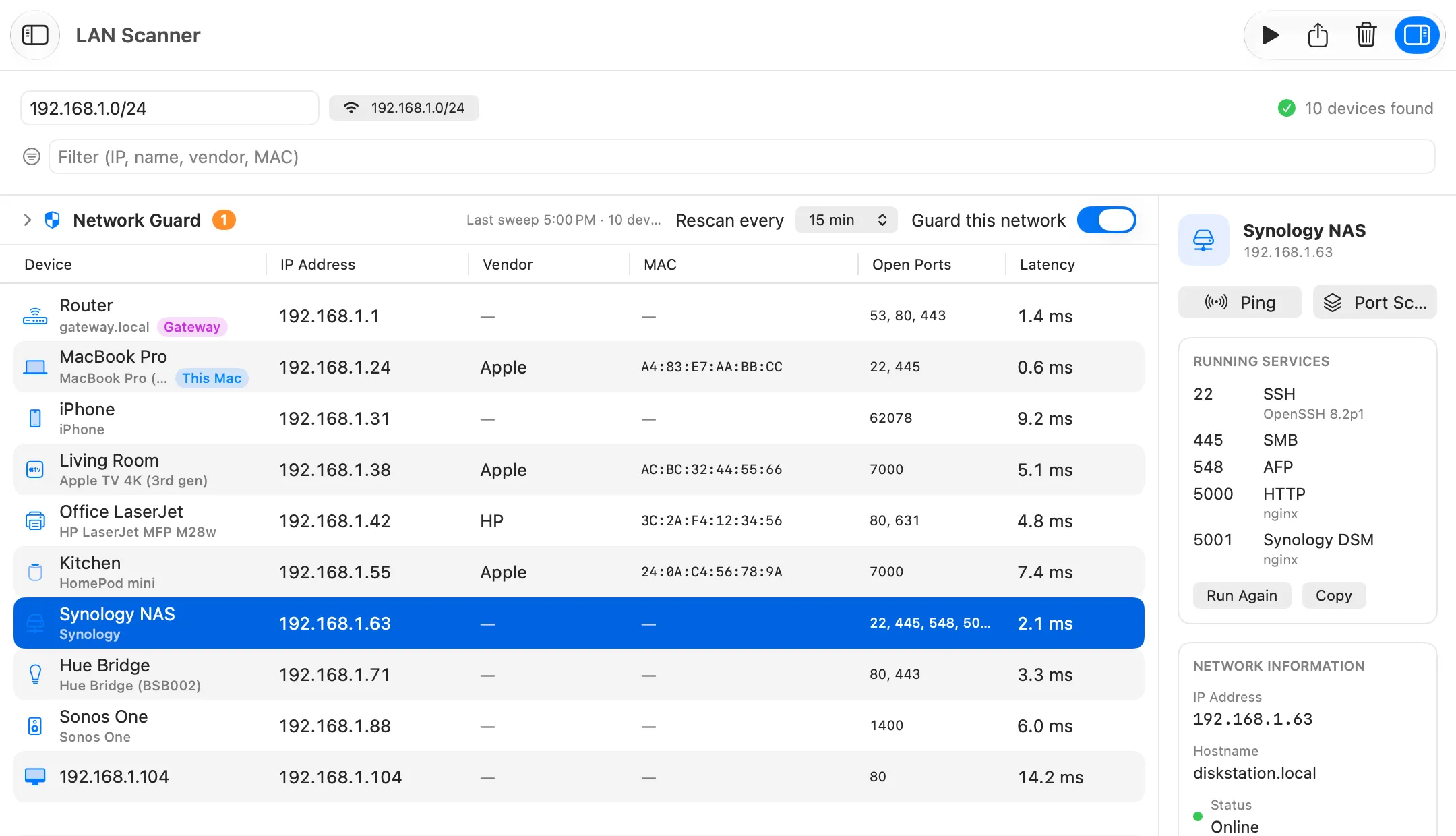
| Default columns | IP, Ping, Hostname, Ports | Device, IP Address, Vendor, MAC, Open Ports, Latency |
| MAC addresses | Optional column, read with arp -n |
Only the ones devices publish themselves |
| Device names | Reverse DNS; NetBIOS for Windows machines | From what each device announces, sometimes down to the model |
| New-device alerts | Not listed | Network Guard, while the app runs |
| Export | TXT, CSV, XML, SQL, IP:Port list | CSV |
| Command line and plugins | Yes | No |
Where Angry IP Scanner is better
- It is free, all of it. There is no paid tier. In Netutilus, LAN Scanner is part of Pro.
- Any range, anywhere. It scans a start-to-end range, random addresses or a list of IPs from a file, and it “scans local networks as well as Internet”. Netutilus LAN Scanner scans one IPv4 subnet of /22 or narrower, and no IPv6.
- More export formats. TXT, CSV, XML, SQL and an IP:Port list that other tools can read. Netutilus exports CSV.
- Extensible. Extra fetchers such as Web detect and HTTP Sender, plugins, and a command-line interface. Since 3.10.0 it asks before loading a new plugin.
- The same tool on every OS. One scanner for Windows, Mac and Linux machines.
When a native scanner fits better
LAN Scanner is part of Netutilus Pro. It is built for the Mac and for home and office networks. It installs from the Mac App Store, so there is no Open Anyway step and no Java runtime.
- Device names, not just addresses. It finds devices with a TCP sweep, Bonjour and the names your router keeps, asks them for more over NetBIOS and SNMP, and names each one from what it announces. A Mac that publishes
MacBookPro18,3is shown as “MacBook Pro (14-inch, 2021)”. - Its columns, right-click actions (SSH, SMB, Screen Sharing, web page) and Check Services are listed on Advanced IP Scanner for Mac.
- Network Guard, above the table, rescans on a schedule while Netutilus is running. Click Trust These Devices once, and it notifies you about every device that joins after that.
- Port Scan is free. It scans any host’s TCP ports, with an optional UDP pass and service and version detection.
What it does not do: ranges wider than a /22, random or file-based address lists, IPv6, plugins or a command line. Recent versions of macOS hide other devices’ MAC addresses from apps, so Netutilus shows only the ones devices publish themselves. For the “who is on my Wi-Fi” question, see Who is on my network.
Which one to use
- You want a free scanner, scan ranges wider than a /22 or from a file, or need XML or a command line: Angry IP Scanner, after one trip to Privacy & Security.
- You want devices named by model, with their ports, actions and an alert when a new one joins: Netutilus LAN Scanner (Pro).
- You only need open ports on one host: Netutilus Port Scan, which is free.
Note: Netutilus is made by Poteam, who publish this site.