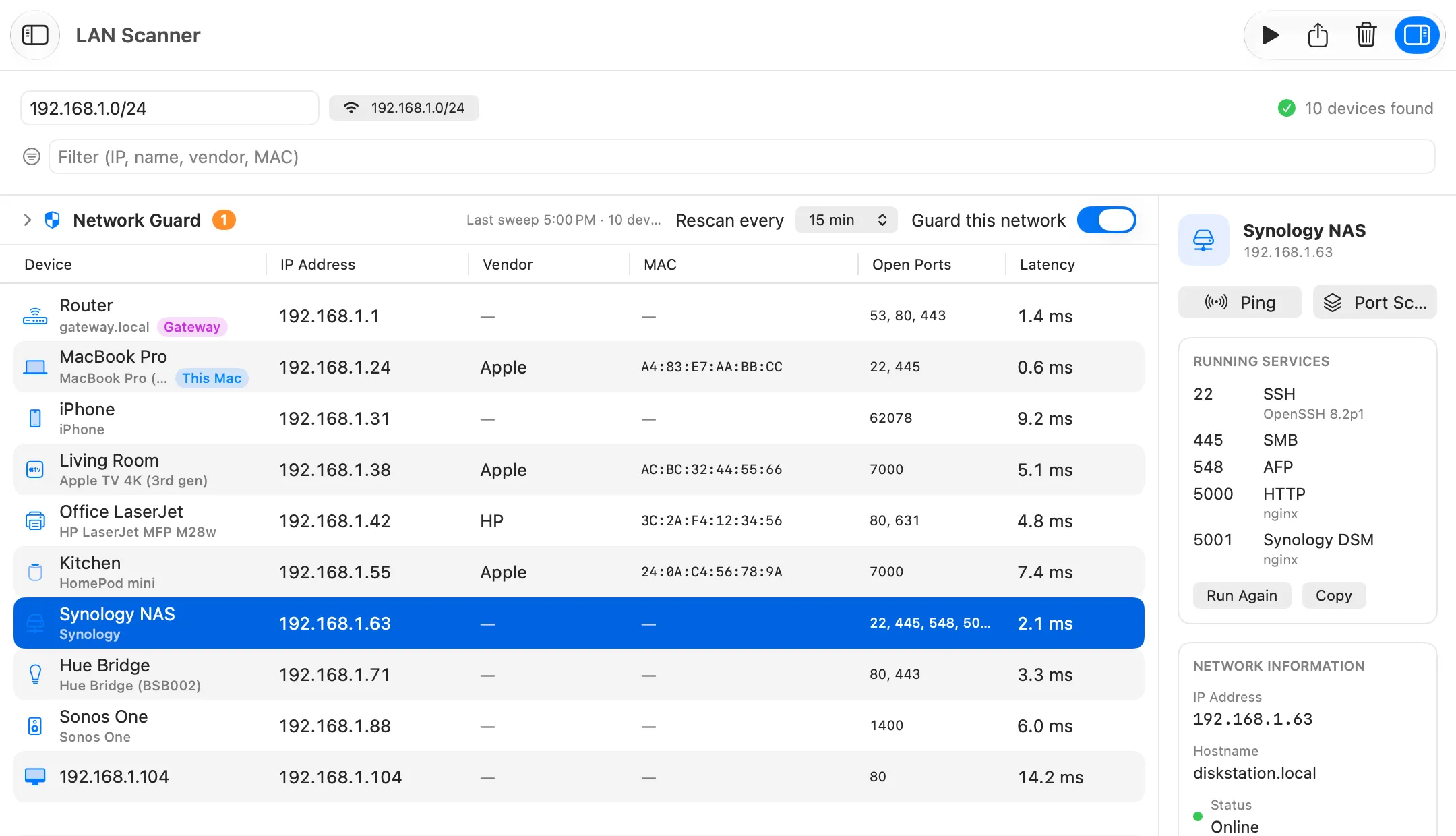
Two lists of the devices on your network come close to complete. One is in your router, if it hands out the addresses. The other you build on the Mac: reach every address on the subnet with a ping, then read the Mac’s ARP table with arp -a. Bonjour (dns-sd) and nmap add names and a second opinion, and a LAN scanner app puts it all in one table.
Commands tested on macOS 27.0.1 on 2026-10-20. Addresses and names in the output are replaced.
| Method | Built in | What it finds | What it misses |
|---|---|---|---|
| Router’s client list | In the router | Every device that got its address from the router | Devices with an address typed in by hand |
arp -a |
Yes | Devices the Mac has recently exchanged traffic with, with MAC addresses | Everything the Mac has not talked to |
Ping sweep, then arp -a |
Yes | Every device on your subnet that answers ARP, even if it ignores ping | Other subnets |
dns-sd -B |
Yes | Devices that announce Bonjour services, with their names | Devices that announce nothing |
nmap -sn |
No (Homebrew) | Live hosts; without sudo, only those that answer on TCP 80 or 443 |
Without sudo: MAC addresses, and devices that drop both ports |
| Netutilus LAN Scanner | No (Pro) | Live devices, named from what they announce, with open ports | Most MAC addresses, other subnets, IPv6 |
The router’s client list: the most complete one
If your router hands out the addresses, as the network’s DHCP server, it keeps a record of each one. RFC 2131 calls that record a binding, “a collection of configuration parameters, including at least an IP address”, and says bindings “are managed by DHCP servers”. So a device that asked the router for an address is on its list, whether or not it answers your Mac.
To open the router’s admin page, you need its address. On a Mac, this prints it on the gateway: line:
route -n get default
    gateway: 192.168.1.1
  interface: en0
Type that address into a browser, or use the router maker’s app. Where the client list sits, and what it is called, depends on the router.
A device with an address set by hand never asks the router for one, so it can be missing. And Apple devices identify themselves “to each network using a different Wi-Fi address”, Apple says; with the Rotating setting that address changes “every 2 weeks”, so the same iPhone can turn up more than once.
List devices in Terminal with arp -a
arp -a prints the Mac’s ARP table: the IP and MAC address of each device the Mac has recently exchanged traffic with on the local network. It reads that table and sends no ARP requests of its own; only the name lookups go out, to your DNS server.
- Open Terminal (Applications › Utilities).
- Run:
arp -a
- Read the output. This is the test Mac’s table, with names and addresses replaced:
? (192.168.1.1) at aa:bb:cc:11:22:01 on en0 ifscope [ethernet]
? (192.168.1.2) at (incomplete) on en0 ifscope [ethernet]
phone-1.lan (192.168.1.6) at (incomplete) on en0 ifscope [ethernet]
? (192.168.1.23) at aa:bb:cc:11:22:03 on en0 ifscope permanent [ethernet]
macbook-pro.lan (192.168.1.30) at aa:bb:cc:11:22:02 on en0 ifscope [ethernet]
phone-2.lan (192.168.1.76) at (incomplete) on en0 ifscope [ethernet]
ipad.lan (192.168.1.144) at aa:bb:cc:11:22:04 on en0 ifscope [ethernet]
macbook-air.lan (192.168.1.197) at aa:bb:cc:11:22:05 on en0 ifscope [ethernet]
mdns.mcast.net (224.0.0.251) at 1:0:5e:0:0:fb on en0 ifscope permanent [ethernet]
How to read a line:
| Part | Meaning |
|---|---|
phone-1.lan or ? |
The name the network’s DNS gives that address; ? when there is none |
(192.168.1.30) |
The device’s IP address |
aa:bb:cc:11:22:02 |
Its MAC address |
(incomplete) |
No MAC address learned for it: the device did not answer when the Mac last asked |
permanent on your own address |
This Mac (ipconfig getifaddr en0 prints the same address) |
224.0.0.251 |
The multicast address Bonjour uses, not a device |
Add -n (arp -an) to skip the name lookups: the manual says -n shows “network addresses as numbers (normally arp attempts to display addresses symbolically)”. On macOS 27.0.1, arp -an run from the shell printed a MAC address for every device that answered.
Apple devices joining a WPA2 or stronger network use a private Wi-Fi address by default (Apple calls the setting Fixed), not their hardware address. A vendor lookup on such an address may find nothing.
Fill the table first: a ping sweep
arp -a only knows devices the Mac has talked to. To make it talk to all of them, ping every address on your subnet once.
- Find the Mac’s address and subnet mask:
ipconfig getifaddr en0
ipconfig getoption en0 subnet_mask
192.168.1.23
255.255.255.0
A mask of 255.255.255.0 is a /24: 254 usable addresses, 192.168.1.1 to 192.168.1.254 here. Subnets and CIDR explains other masks. If en0 prints nothing, route -n get default names your interface on its interface: line.
- Ping all 254 addresses at once. Replace
192.168.1with the first three numbers of your own address:
( for i in $(seq 1 254); do ping -c 1 -W 500 192.168.1.$i >/dev/null 2>&1 & done; wait )
-c 1 sends one ping, -W 500 waits 500 milliseconds for the reply, & runs every ping at the same time, and wait returns when all are done. The parentheses run the loop in a subshell, so zsh does not print a job line for each ping, and the loop prints nothing.
- Run
arp -aagain.
Why this also finds devices that ignore ping: before the Mac can send a ping to a local address, it has to find that address’s MAC with an ARP request. The Nmap book puts it plainly: “Hosts frequently block IP-based ping packets, but they generally cannot block ARP requests or responses and still communicate on the network.” A device that answers the ARP request lands in the table even if it then drops the ping.
Note: Sweep only networks you own or manage. On a work or school network, ask first.
See what devices announce: dns-sd
AirPlay, printing and device discovery run on Bonjour (multicast DNS), so many devices announce their services that way. dns-sd is built in and lists them. First, the service types on the network:
dns-sd -B _services._dns-sd._udp local.
Browsing for _services._dns-sd._udp.local.
DATE: ---Tue 20 Oct 2026---
18:47:44.871  ...STARTING...
Timestamp     A/R    Flags  if Domain               Service Type         Instance Name
18:47:44.871  Add        3  14 .                    _tcp.local.          _nearbypresence
18:47:44.871  Add        3  14 .                    _tcp.local.          _0A1B2C3D4E5F
18:47:44.871  Add        3   1 .                    _tcp.local.          _airplay
18:47:44.871  Add        3   1 .                    _tcp.local.          _raop
18:47:44.871  Add        3   1 .                    _tcp.local.          _companion-link
18:47:44.871  Add        3  14 .                    _tcp.local.          _airplay
18:47:44.871  Add        3  14 .                    _tcp.local.          _raop
18:47:44.871  Add        2  14 .                    _tcp.local.          _companion-link
The command does not stop on its own. Its manual says calls like browse “never complete”, and results keep arriving “as services come and go”. Press Control-C when the list stops growing.
Then browse one type to see the names of the devices behind it, for example AirPlay receivers:
dns-sd -B _airplay._tcp local.
Each Add line ends with a device name, such as MacBook Pro.
Be ready for a short list. On the test network, a 25-second browse showed only the test Mac’s own services: the if column is the interface, 1 for the Mac’s loopback and 14 for its Wi-Fi interface en0. None of the other devices in its ARP table announced anything. dns-sd finds the devices that announce themselves, nothing more.
nmap -sn: host discovery from Homebrew
nmap is not part of macOS. Install it with Homebrew (brew install nmap), then list the live hosts on your subnet:
nmap -sn 192.168.1.0/24
-sn means host discovery only: the Nmap manual says it tells nmap “not to do a port scan after host discovery”. Run against the router alone, it printed:
Starting Nmap 7.992 ( https://nmap.org ) at 2026-10-20 15:55 +0000
Nmap scan report for 192.168.1.1
Host is up (0.0037s latency).
Nmap done: 1 IP address (1 host up) scanned in 0.51 seconds
There is no MAC address in that output. Without sudo, nmap sends only “SYN packets … (using a connect call) to ports 80 and 443”, so a device that silently drops both can be missed. Run as a privileged user on a local Ethernet network, it uses ARP requests instead. Checking which ports each device has open is a different job: see how to check open ports on a Mac.
Why apps see less than Terminal
Two macOS protections apply to apps and not to the commands above.
- Local Network access. Since macOS 15, an app must be allowed to reach devices on your network. The first time it tries, macOS asks; your answer is kept in System Settings › Privacy & Security › Local Network. Apple’s TN3179 lists who is allowed automatically, including “command-line tools run from Terminal or over SSH, including any child processes they spawn”. That is why
arp,pinganddns-sdnever ask. A scanner app that was refused sees almost nothing. - Other devices’ MAC addresses. Recent versions of macOS hide them from apps. On the test Mac (macOS 27.0.1), a small program compiled there read the system’s ARP table and got it empty. Even
arp -anstarted from inside that program printed 0 lines, while the same command run straight from the shell listed every entry.
So an empty MAC column in a Mac scanner app is not that app’s bug. For every MAC address, arp -a in Terminal is the better tool.
Identify devices with LAN Scanner in Netutilus
The Terminal methods give you addresses and some names. LAN Scanner in Netutilus finds the devices and works out what each one is. It is part of Netutilus Pro, a one-time in-app purchase.
It finds devices with a TCP sweep of the subnet, Bonjour, and the names your router keeps for its address leases, then asks each address over NetBIOS and SNMP (read-only; the setting “Ask devices for their MAC address (NetBIOS, SNMP)” is on by default). Each device is named from what it announces, sometimes down to the model.
- Open Netutilus and choose LAN Scanner under Monitoring in the sidebar.
- Click Scan. If macOS asks whether Netutilus may find devices on your local network, allow it.
- Read the table. Your router is marked Gateway and this Mac This Mac. A grey Remembered device did not answer: the router only remembers its name. Often it is a phone that’s asleep.
- For a device you do not recognise, select it and click Check Services to see what runs on it.
- To hear about newcomers, turn on Guard this network in Network Guard, above the table, and click Trust These Devices once you know them all. Netutilus then rescans every 5, 15, 30 or 60 minutes (15 by default) while it is running, and sends a notification when a new device joins.
Right-click any device to send it to Ping or Port Scan. Ping and Port Scan are free, so you can also use them on the addresses arp -a gave you without Pro.
What LAN Scanner does not do:
- MAC addresses for every device. macOS hides them from apps, so it shows the ones devices publish themselves. Use
arp -afor the rest. - IPv6 or more than one subnet. It scans one IPv4 subnet. A network wider than /22 is scanned as the /24 around your Mac.
If the question behind your search is “who is using my Wi-Fi”, see who is on my network: how to tell your own devices from a stranger’s, and what to do about one.