Commands tested on macOS 27.0.1 on 2026-10-20.
Spikes only while downloading, or all the time?
Different problems look alike on a ping chart. Sort them by when the spikes happen:
| When the spikes come | Likely cause | Where to fix it |
|---|---|---|
| Only while something big downloads or uploads | Bufferbloat: packets queue behind the transfer, usually in the router or modem | The router: Smart Queue Management (SQM) |
| On an idle line, in a regular rhythm, and a cable makes them go away | AWDL, the Wi-Fi link Apple devices use for AirDrop and Continuity | The router’s channel, or AWDL itself |
| Randomly, with lost probes, and worse in some rooms | Weak signal or a crowded channel | Signal and channel, see the last section |
The test below takes two minutes and tells you which row you are in.
Prove it: ping your router for two minutes
Ping the router, not a website. The router is the other end of your Wi-Fi link, so delay to it is delay on the Wi-Fi itself, with your provider and the server out of the picture.
In Terminal
- Open Terminal (Applications › Utilities).
- Find your router’s address:
route -n get default | awk '/gateway/ {print $2}'
192.168.1.1
- Leave the Mac alone, close downloads, and send 600 pings, five per second, for two minutes. Use your router’s address from step 2:
ping -i 0.2 -c 600 --apple-time 192.168.1.1 | tee router-ping.txt
-i 0.2 sends a probe every 0.2 seconds. --apple-time prints when each reply arrived, so you can see whether the spikes keep a rhythm.
A real run from a MacBook Pro on 2.4 GHz channel 11, line idle (the middle is cut):
13:22:44.354306 64 bytes from 192.168.1.1: icmp_seq=0 ttl=64 time=5.840 ms
13:22:44.552120 64 bytes from 192.168.1.1: icmp_seq=1 ttl=64 time=2.860 ms
13:22:44.851353 64 bytes from 192.168.1.1: icmp_seq=2 ttl=64 time=92.030 ms
13:22:44.984818 64 bytes from 192.168.1.1: icmp_seq=3 ttl=64 time=24.649 ms
13:22:45.239536 64 bytes from 192.168.1.1: icmp_seq=4 ttl=64 time=72.702 ms
...
--- 192.168.1.1 ping statistics ---
600 packets transmitted, 590 packets received, 1.7% packet loss
round-trip min/avg/max/stddev = 1.904/7.024/92.030/8.448 ms
- Count the slow replies and the lost probes in the saved file:
awk -F'time=' '/time=/ {split($2,a," "); n++; if (a[1]+0 > 20) s++} END {print n " replies, " s " over 20 ms"}' router-ping.txt
grep -c "Request timeout" router-ping.txt
590 replies, 28 over 20 ms
10
In this run the median reply took 4.9 ms, and 28 of 590 took over 20 ms, up to 92 ms. Set the 20 in the command to about four times your own median: a reply that slow is a burst of delay.
How to read the run
| What you see | What it points to |
|---|---|
| Max under about four times the median, no lost probes | The Wi-Fi is fine. Look past the router: bufferbloat or the server |
| Spikes at a steady rhythm, no lost probes, line idle | AWDL channel hopping (next section) |
| Spikes that come and go at random, some lost probes | Signal, interference or a busy channel |
The run above is not a clean AWDL case: the spikes are irregular and 10 probes were lost. The network is on channel 11, not a channel AWDL uses, so the channel fix below is worth a try, but signal and interference stay suspects.
In Netutilus
Ping is free in Netutilus. It draws every probe on a live chart, so a rhythm is easy to see:
- Open Ping in the sidebar.
- Type your router’s address in the host field at the top.
- Set Mode to ICMP. A router may not serve the TCP port, and a refused connection counts as a lost probe.
- Set Interval to 0.5s and turn on Continuous.
- Click Start in the toolbar, or press ⌘↩.
- After two minutes, click Stop and set Chart range to Whole run.
A Max far above Avg means occasional spikes. Lost probes show as red bands. If you use Wi-Fi Networks, stop its scan first: a scan takes the radio off your channel for a moment. It pauses on its own for Speed Test, iperf3, Internet Check and Wi-Fi Analyzer, but not for Ping.
What AWDL is and why it hops channels
AWDL (Apple Wireless Direct Link) is the peer-to-peer Wi-Fi Apple devices use to talk to each other: Apple’s security guide describes AirDrop as Bluetooth Low Energy plus “Apple-created peer-to-peer Wi-Fi technology”. AirPlay, Handoff, Sidecar, Auto Unlock and Continuity Camera rely on it too.
On 21 October 2025, Christoff Visser of IIJ Research Lab presented his findings at the RIPE 91 meeting (session and slides, transcript, The Register’s report):
- AWDL negotiates on three fixed “social” channels: 6 on 2.4 GHz, 44 and 149 on 5 GHz.
- If your router is on any other channel, the Mac periodically leaves your channel for the social one, listens, and comes back. Traffic waits in a queue meanwhile, so you get rhythmic delay without lost packets.
- Pinging from his MacBook on Wi-Fi to a wired computer at home, he saw a rhythmic swing from about 3 ms to 92 ms. Moving to a less congested channel did not help. With the router on channels 6 and 44, the maximum fell from 92.4 ms to 9.9 ms.
- The hopping grows when a nearby Apple device is unlocked and negotiates. That device does not have to be on your network.
- He said it was still there “in the latest iOS and macOS updates”, and Apple had not answered his report.
On macOS 27.0.1, the interface is still there and up:
ifconfig awdl0 | head -1
awdl0: flags=8863<UP,BROADCAST,SMART,RUNNING,SIMPLEX,MULTICAST> mtu 1500
That shows AWDL runs, not that it hops: Visser needed a second laptop capturing Wi-Fi frames to see that.
Fix 1: put the router on channel 6, 44 or 149
This is the fix Visser recommends for home networks, and it keeps AirDrop working.
- Check your current channel in Terminal:
system_profiler SPAirPortDataType | awk '/Current Network Information/{f=1} f&&/Channel:/{print; exit}'
Channel: 11 (2GHz, 20MHz)
- Open your router’s admin page, turn off automatic channel selection, and set the 5 GHz band to 44 or 149, or 2.4 GHz to 6. Visser could not test 149 because it is not available in Japan. Which channels you can pick depends on your country.
- Run the two-minute ping again and compare the max and the spike count.
There is a trade-off. Wi-Fi Networks in Netutilus (Pro) recommends the channel where your network meets the least competition from the neighbouring networks it hears, and Apple’s router advice is to set the channel to Auto. Neither considers AWDL: the app scores neighbours only, and Apple’s page does not mention it. If neighbours crowd channel 6, moving there can cost speed. Visser said his own advice makes him uncomfortable because it “promotes bad network practices”. Try it, measure, and keep it only if the spikes go.
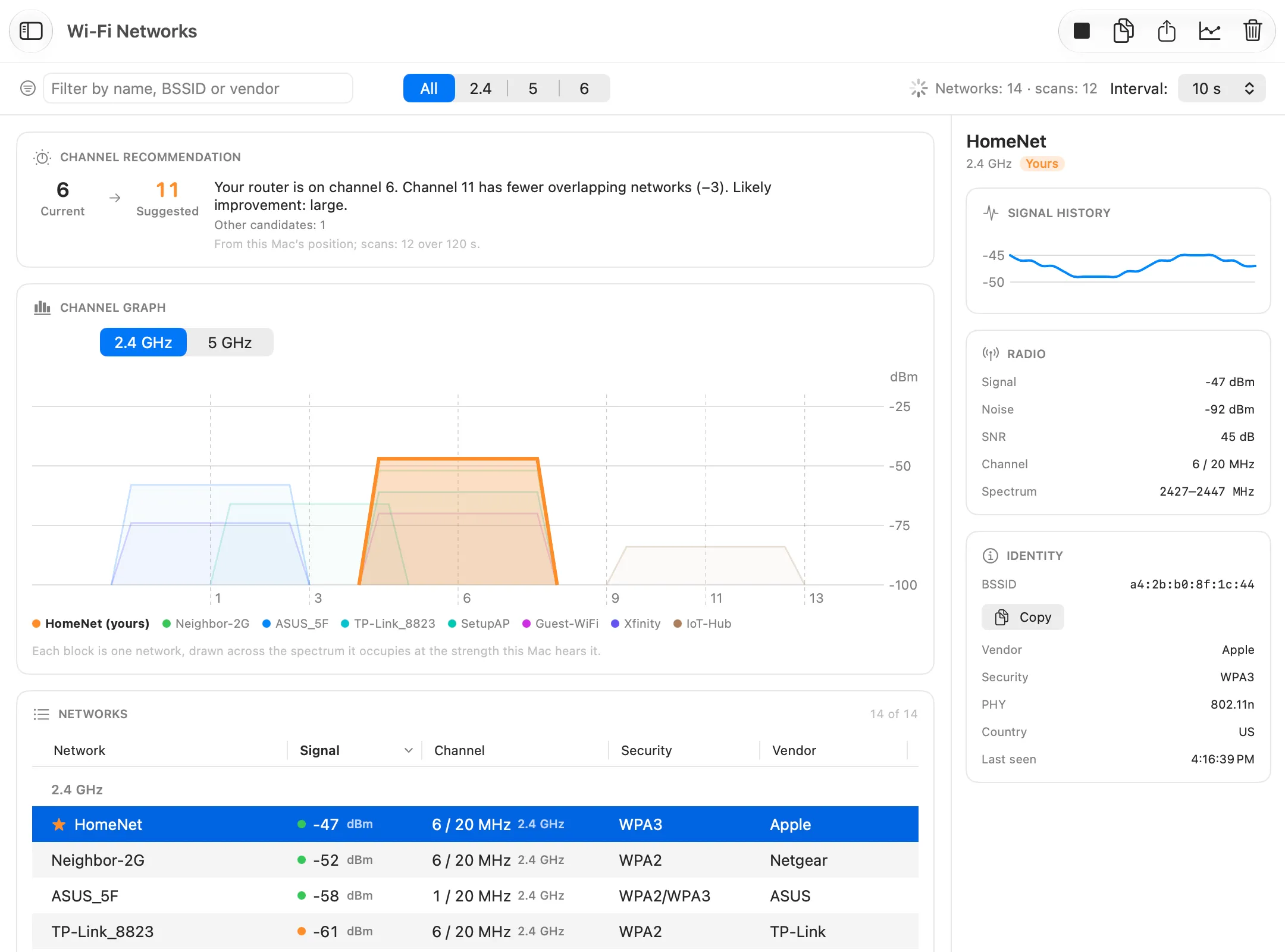
In Wi-Fi Networks, the Channel recommendation card shows your Current channel next to the Suggested one. Treat the suggestion as the answer for crowding, not for AWDL. More on bands and overlap: Wi-Fi channels.
Fix 2: sudo ifconfig awdl0 down (temporary)
You can switch the AWDL interface off, and back on:
sudo ifconfig awdl0 down
sudo ifconfig awdl0 up
Know what this costs:
- It needs an administrator password: only the super-user may change a network interface.
- AirDrop and AirPlay stop working, and so do Handoff, Sidecar, Auto Unlock and Continuity Camera. Visser’s slides list them all under “Don’t use AWDL”.
- It may not last. Meter, a network vendor, wrote in a 2022 guide for macOS Monterey and Ventura that the Mac “will periodically ask you to turn AWDL back on”, and that its own keep-it-down script stops when the Mac restarts or sleeps.
We did not run it for this page, because it changes the network setup. To see the state, run ifconfig awdl0 | head -1: UP in the flags means AWDL is on. Use it as a test or for one gaming session, not as a permanent fix.
What turning off AirDrop and Handoff does and doesn’t do
Meter’s way to stop AWDL without Terminal turns off two things, not one:
- Bluetooth, in System Settings.
- AirDrop discovery: in Finder, choose Go › AirDrop and set Allow me to be discovered by to No One.
Meter wrote these steps in 2022 for macOS Monterey and Ventura. With Bluetooth off, Bluetooth keyboards, mice and headphones disconnect too. We found no primary source showing that turning off AirDrop alone, or Handoff alone, stops the hopping, so measure before and after.
If the spikes come with downloads: bufferbloat and SQM
If the router ping stays flat when the line is idle, the spikes are probably not on the Wi-Fi. Test the line while it is loaded instead. Apple’s networkQuality measures delay under load in one run:
networkQuality -v
The summary at the end of its output:
==== SUMMARY ====
Uplink capacity: 11.476 Mbps
Downlink capacity: 12.092 Mbps
Responsiveness: Low (2.123 seconds | 28 RPM)
Idle Latency: 30.783 milliseconds | 1949 RPM
Here delay rose from 31 ms idle to over 2 seconds under load: bufferbloat. A router ping during the same test went from a median of 4.9 ms to 13.5 ms, so most of the delay sat past the router. It also lost 16.8% of its probes, so the Wi-Fi leg suffered too. A router ping on an idle line would have missed all of it.
Speed Test in Netutilus is free and grades the same thing from A+ to F. Its scheduled tests and History are Pro. The fix is on the router: turn on Smart Queue Management (SQM, fq_codel, cake or Adaptive QoS) and set its limits to about 90 to 95% of your plan. Bufferbloat explains the grades and the settings.
Spikes in games and GeForce NOW: wired vs Wi-Fi
Visser found the problem while streaming games from his computer to an iPad, where a delay shows up as a stutter. NVIDIA asks for less than 80 ms of latency from its data center to the player, and recommends “a hardwired Ethernet connection, or a router with a 5 GHz WiFi connection” (GeForce NOW system requirements).
- Try a cable first. It takes the Wi-Fi out of the path; Visser’s stutter went away on a wired connection. If a cable fixes it, the cause is on the Wi-Fi: AWDL, signal or channel.
- Stay on Wi-Fi? Use 5 GHz, and put the router on 44 or 149 (Fix 1).
- Spikes on a cable too? Then the cause is past the Wi-Fi. Run the loaded test in the previous section.
Still spiking? Check the band, the channel and other devices
If neither the channel nor a cable explains it, check the rest of the Wi-Fi leg:
- The band. 2.4 GHz is crowded and shared with Bluetooth and microwaves. Join the 5 GHz network if your router has one. See Wi-Fi channels.
- The signal. Wi-Fi Analyzer (Pro) shows RSSI and noise, and its Latency split times the router and the internet side by side. A slow router leg means the Wi-Fi. Below about −70 dBm the connection starts to struggle. See weak Wi-Fi.
- The neighbours. Wi-Fi Networks (Pro) shows who shares or overlaps your channel. If your spikes are not AWDL, its suggested channel is the one to try.
- Other devices. A backup, a console update or a video upload fills the line: that is bufferbloat again.
- Lost probes, not only slow ones. Loss is a different problem with its own causes: packet loss. For calls that stutter, see jitter and video calls that lag.