Every device in the house shares your provider’s line. If the phone is fast on it right now and the Mac is not, the line is not the problem: the Mac’s link to the router, or the Mac itself, is. If every device is slow, go to the internet is slow or keeps dropping.
Commands tested on macOS 27.0.1 on 2026-10-20, on a MacBook on home Wi-Fi. Addresses and names in the output are replaced.
First prove it’s the Mac
- Put the phone next to the Mac.
- Join the same network on both. If the router has separate 2.4 GHz and 5 GHz names, use the same one.
- Open the same test on both, for example speed.cloudflare.com in a browser. Different speed test apps use different servers, so their numbers don’t compare.
- Run the test on one device, then on the other, not at the same time: they share the line.
If the Mac is clearly slower in the same spot, read on.
Router leg vs internet leg
Traffic takes two legs: Mac to router (Wi-Fi or a cable), then router to internet. The phone shares only the second leg, so when only the Mac is slow, suspect the first leg or the Mac itself.
In Terminal
- Find the router’s address and the interface the Mac uses:
route -n get default | grep -E 'gateway|interface'
    gateway: 192.168.1.1
  interface: en0
- Ping the router, then a server on the internet, 20 times each:
ping -c 20 192.168.1.1
ping -c 20 1.1.1.1
--- 192.168.1.1 ping statistics ---
20 packets transmitted, 20 packets received, 0.0% packet loss
round-trip min/avg/max/stddev = 2.842/5.048/15.724/2.935 ms

--- 1.1.1.1 ping statistics ---
20 packets transmitted, 20 packets received, 0.0% packet loss
round-trip min/avg/max/stddev = 12.019/15.253/25.694/3.452 ms
| What you see | What it means |
|---|---|
| Router: no loss, low and steady times. Internet: a few ms more | Both legs are healthy, as in this run (5 ms to the router, 15 ms to 1.1.1.1). Look at the Mac-side causes below |
| Router: loss, or times that jump | The Wi-Fi link, or something on the Mac, is the bottleneck |
| Router fine, internet slow, but the phone is fine | Suspect a VPN on the Mac: it carries only the Mac’s traffic |
Wi-Fi adds a few milliseconds, more when it’s busy. See latency for what counts as good.
In Netutilus
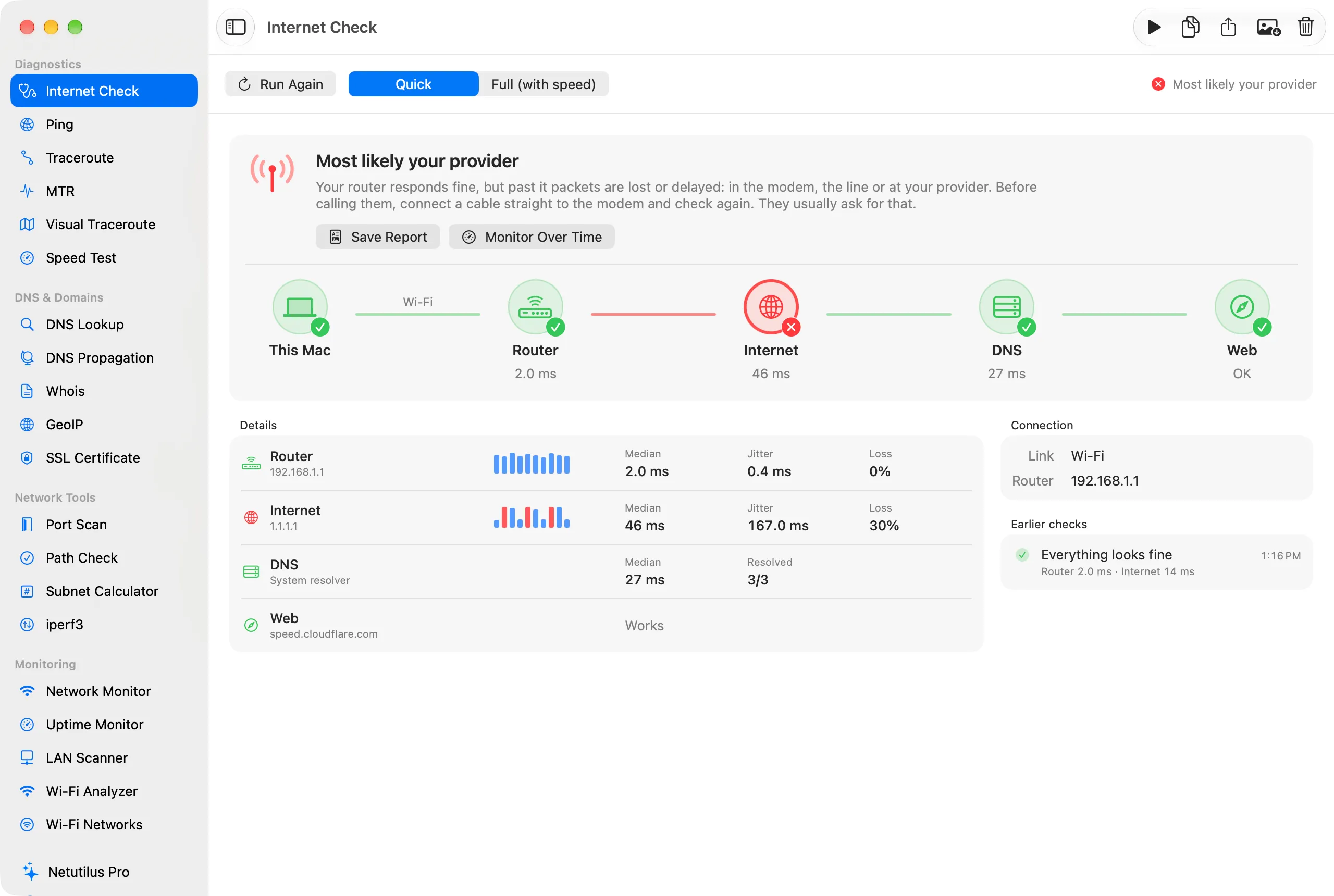
Internet Check is free. Click Check My Connection. It draws the path as This Mac, Router, Internet, DNS and Web, and makes 10 timed connections to the router and 10 to 1.1.1.1.
- The problem is on your side: the router itself is slow or losing probes, on Wi-Fi most likely the signal.
- Most likely your provider: the router is fine and trouble starts past it. If the phone is fine at that moment, read the VPN and proxy section below first.
- Can’t tell with a VPN on: it measured through the tunnel. Turn the VPN off and check again.
Wi-Fi Analyzer (Netutilus Pro) runs the same split live as Latency split, with a verdict such as “The bottleneck is your Wi-Fi link to the router”.
Speed Test on the Mac vs the phone, same spot
Compare the two with one browser test, as in step 3: a phone can’t run the Mac’s networkQuality, and different test apps use different servers. Delay that balloons under load (bufferbloat) sits in the router or the line, so it slows the phone too and does not explain a Mac-only problem. Speed Test in Netutilus is free and grades it from A+ to F; History, which runs tests on a schedule, is part of Pro.
Mac-side causes, each with a check
After each change, run the same test again in the same spot.
VPN, content filter or proxy
A VPN, filter or proxy on the Mac carries only the Mac’s traffic, so it can slow the Mac while the phone stays fast.
- List VPN configurations and whether each is connected:
scutil --nc list
Available network connection services in the current set (*=enabled):
* (Disconnected)   0A1B2C3D-0000-4000-8000-000000000001 VPN (com.example.vpn) "ExampleVPN"   [VPN:com.example.vpn]
- Run
route -n get defaultas above. Autuninterface there means a tunnel carries all traffic; a split-tunnel VPN leaves the route alone, so step 1 still counts. Don’t judge byifconfigalone: this Mac listed fourutuninterfaces with no VPN connected. - Check for a proxy with
scutil --proxy. Lines such asHTTPEnable : 1,HTTPSEnable : 1,ProxyAutoConfigEnable : 1orProxyAutoDiscoveryEnable : 1mean web traffic may go through a proxy. This Mac printed only its exceptions list, so no proxy is set. - In System Settings › Network, look for VPN and filter entries added by security, parental-control or work apps. Turn one off, test again, and turn it back on if nothing changed.
Network Monitor in Netutilus (free) lists each interface and names a VPN tunnel as one. To check a VPN that should stay on, see is my VPN working.
iCloud Private Relay
Private Relay protects your privacy when you browse in Safari. Apple says “some speed test measurements may appear lower when Private Relay is enabled”: it uses one connection where speed tests open several. So a Mac with it on can test slower in Safari than a phone without it.
- Turn it off for a test: System Settings › your name › iCloud › Private Relay.
- Or for one network: System Settings › Network › Wi-Fi › Details next to the network, then turn off Limit IP address tracking.
If Safari’s speed test jumps with it off, that was the cause; keeping it on is a privacy choice.
DNS
Slow name lookups make every page start late, even when the speed test looks fine. See which server the Mac uses, then time a lookup through it and through a public one:
scutil --dns | head -5
dig apple.com | grep -E 'Query time|SERVER'
dig @1.1.1.1 apple.com | grep -E 'Query time|SERVER'
DNS configuration

resolver #1
  search domain[0] : lan
  nameserver[0] : 192.168.1.1
;; Query time: 9 msec
;; SERVER: 192.168.1.1#53(192.168.1.1)
;; Query time: 15 msec
;; SERVER: 1.1.1.1#53(1.1.1.1)
Both answer in milliseconds, so DNS is fine here. Hundreds of milliseconds or timeouts through the Mac’s own server would not be. Internet Check reports this as DNS is slow and suggests a server such as 1.1.1.1 or 8.8.8.8. More in DNS.
2.4 GHz band, channel and link rate
A phone on 5 GHz and a Mac on 2.4 GHz in the same room will not test alike.
- Hold Option and click the Wi-Fi icon in the menu bar. Under the connected network, Apple lists the IP address, router address, channel, band, security and 802.11 protocol.
- Or read it in Terminal:
system_profiler SPAirPortDataType | grep -E -m4 'PHY Mode:|Channel:|Signal / Noise:|Transmit Rate:'
              PHY Mode: 802.11n
              Channel: 11 (2GHz, 20MHz)
              Signal / Noise: -57 dBm / -94 dBm
              Transmit Rate: 104
This Mac supports 802.11 a/b/g/n/ac/ax, yet it sat on 2.4 GHz with 802.11n while the same report listed 5 GHz networks nearby. That alone can explain a phone beating it.
| Reading | Fine | Worth fixing |
|---|---|---|
| Band | 5 or 6 GHz near the router | 2.4 GHz: slow and crowded, only channels 1, 6 and 11 don’t overlap |
| Signal (RSSI) | −60 dBm or higher | −70 dBm or lower: the connection starts to slow |
| SNR (signal minus noise) | 25 dB or more | Below 15 dB: unreliable |
| Transmit Rate | A ceiling; real throughput is usually about half | Far below the phone’s in the same spot |
Here SNR is 37 dB, which is good: the band is the weak point. Move closer to the router, or join its 5 GHz network if it has a separate name. Apple recommends a single name for all bands on the router. On this Mac (macOS 27.0.1), system_profiler printed every network name as <redacted>, so match networks by channel.
Wi-Fi Analyzer (Netutilus Pro) shows band, channel, width, Wi-Fi standard, TX Rate, signal and noise live, and its Roaming log records every band and channel change. See Wi-Fi signal: RSSI, noise and SNR and Wi-Fi bands and channels.
Rhythmic lag spikes (AWDL)
If pages load at full speed but calls and games stutter at a steady rhythm, the cause can be AWDL, the link Apple devices use for AirDrop: when the router is not on channel 6, 44 or 149, the Mac briefly leaves your channel to listen on one of them. That costs delay, not speed, so it rarely explains a slow speed test.
Service order and background sync
With two active connections, such as Wi-Fi and a dock’s Ethernet port, the Mac tries the one at the top of the service order first. List it (the first entries are enough):
networksetup -listnetworkserviceorder | head -6
An asterisk (*) denotes that a network service is disabled.
(1) Thunderbolt Bridge
(Hardware Port: Thunderbolt Bridge, Device: bridge0)

(2) Wi-Fi
(Hardware Port: Wi-Fi, Device: en0)
To change it: System Settings › Network, the Action pop-up menu, Set Service Order, drag, then OK. Network Monitor marks the interface that is In use right now.
Background sync is the other Mac-only load: photo libraries, cloud drives, backups and updates. In Activity Monitor, click Network: the bottom of the window shows how much data the Mac sends and receives. To see it per process, nettop in Terminal takes two samples 5 seconds apart; the second shows the bytes each process moved in those 5 seconds:
nettop -P -L 2 -d -s 5 -J bytes_in,bytes_out -x
,bytes_in,bytes_out,
Browser Helper.27909,8784,7254,
mDNSResponder.522,4967,2467,
This Mac moved only kilobytes. A process moving megabytes while you do nothing is using the bandwidth: pause it and test again.
If the slowdown started with a macOS update, run the checks above again, VPN, filters and proxies first.
Still slow everywhere?
If the phone is slow too, or Internet Check points past the router with no VPN or proxy involved, the problem is shared: the router, the line or the provider. Follow the internet is slow or keeps dropping, which ends with the evidence your provider will ask for.